

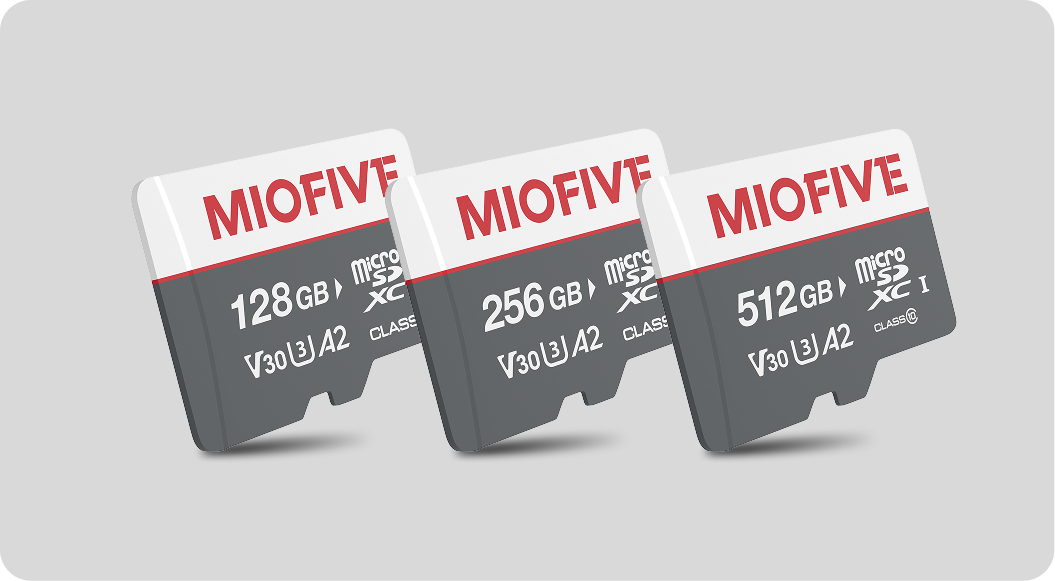
Q: How do I insert or remove an Memory card?
A:
1. Insert the Memory card
• Turn off the dashcam.
• Insert the Memory card with the label facing up until you hear a click.
• Make sure the card is fully pushed in to lock. If it feels difficult to insert using your finger, use a flat object (like another card or a ruler) to help.
2. Remove the Memory card
• Turn off the dashcam.
• Gently press the card until it pops out, then pull it out.
Q: Does the device include an Memory card?
A:
• S1: No Memory card included
• S1 E: No Memory card included
• Mini Series: No Memory card included
• S1 + 32G: Includes 32GB Memory card
• S1 Pro: Includes 32GB Memory card
• S1 Ultra: Includes 64GB Memory card
• Mirror 1: Includes 128GB Memory card
Q: What should I do if no videos are saved on the Memory card?
A:
1. Check the storage folder for Emergency Videos (EMER Video).
2.Try repairing any corrupted files.
Q: What should I do if the Memory card shows errors, asks for formatting, or repeatedly requests formatting?
A:
1. Update the firmware.
Watch Tutorial: https://www.youtube.com/watch?v=EHYQ4G5CNqE
2.Reformat the Memory card.
Watch Tutorial:https://www.youtube.com/watch?v=MqbQIqSVNb4
3. If the issue persists, please contact us for an Memory card replacement.
Q: I'm having trouble formatting my Memory card. Can I get detailed instructions?
A: Are you formatting on the dashcam or on a computer?
If the dashcam fails, please format the card on a computer using ExFAT.
Here are 2 tutorials I found on Youtube that might help.
https://www.youtube.com/watch?v=OY28ANg_4hM
https://www.youtube.com/watch?v=MYjFO_QGdrY
Q: What is the approximate recording time for different Miofive Memory card capacities?
A:

If you're experiencing recording gaps, file corruption, or "Memory Card Error" messages, we’ve developed a dedicated PC tool to help identify the root cause. Follow this step-by-step guide to run a diagnostic on your storage media. 📥 Download Link: Click here to download the tool.
🎬 How-to Video: Click here to watch the video tutorial.
📋 Step-by-Step Instructions:
Step 1: Installation
Download and run the setup file to install the diagnostic software on your PC.
Step 2: Prepare the Card
Insert your memory card into a High-Speed card reader and plug it into your computer.
⚠️ IMPORTANT: Accessing the card via this tool will AUTOMATICALLY FORMAT it.
PLEASE BACK UP all important files before proceeding, as all data will be erased.
Follow the on-screen prompts to complete formatting, then close the window.
Step 3: Run Diagnostic & Understanding Results
Wait for the software to load and analyze the card. Once finished, you will see one of the following conclusions:
✅ Pass: The card is healthy and has no issues.
❌ Fail: The card's speed is below standard. Replacement is highly recommended.
⚠️ Warn: The card barely meets the standard and may cause issues after prolonged use.
📸 How to Take a Screenshot:
If you need further assistance, please send us a screenshot of your results using one of these methods:
Method 1: Shortcut (Win + Shift + S)
Press Win + Shift + S simultaneously; the screen will dim.
Click and drag to select the software window.
It is now saved to your clipboard. Press Ctrl + V to paste and send it via email.
Method 2: Print Screen Key (PrtSc)
Press the PrtSc key on your keyboard.
This captures your entire screen silently.
Open your email and press Ctrl + V to paste.
Method 3: Smartphone Photo
Ensure the computer screen is clear and readable.
Take a photo of the software interface with your phone.
Avoid glare and ensure all data is legible before sending.
📧 Support Email: support@miofive.com
Send your screenshot to our team, and our engineers will provide a detailed analysis and solution.
Share:
How to Check Version?