

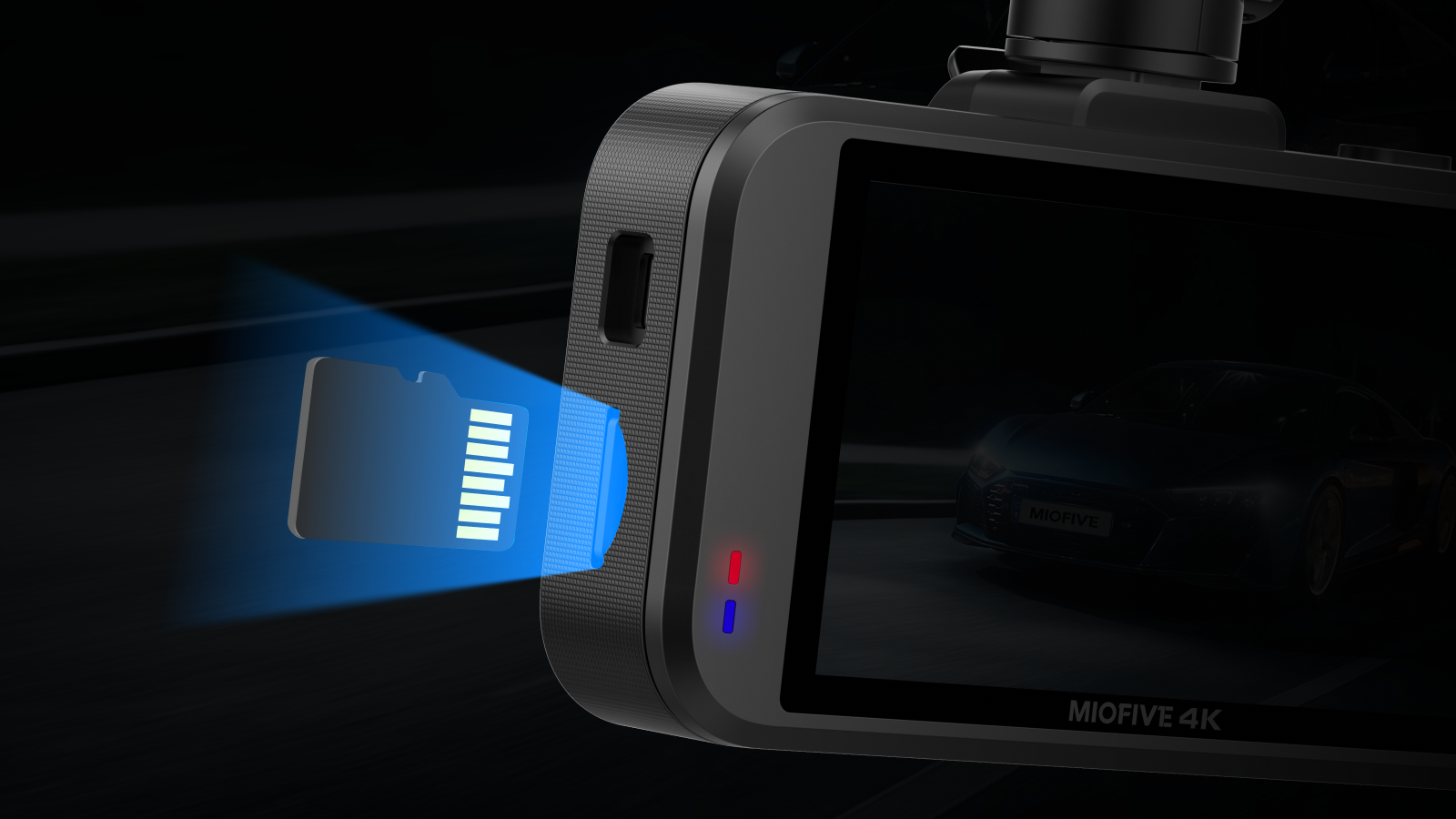
📌Your dash cam records in a continuous loop, meaning it is constantly writing and overwriting data. This puts significant stress on the memory card. For optimal performance, we recommend formatting your memory card at least once a month.

If you fail to format your memory card for a prolonged period of time, you may encounter the following issues:
- ❗Memory card error messages
- ❗Frozen screen
- ❗Gaps between recordings
- ❗Corrupted or unplayable files
- ❗Failure to start up and shutdown
- ❗Inoperable buttons
💡Tips: If you drive frequently, we recommend formatting your memory card more regularly than the average user.

Yes. You may receive on-screen pop-up and voice reminders such as:
“Memory card damaged, please replace.”
“Memory card error, please format.”
“Please format memory card.”

Format Warning
Format Warning
Format Warning


You can do this either on the dash cam or through the app.
📷On the dash cam:
Settings → More Settings → Format Memory Card → YES
YouTube tutorial: How to Format Your SD Card on Your Miofive Dash Cam?
📱Via the app:
Method 1:Home → Devices → Quick Settings → More → Format SD Card
Method 2: Home → Devices → Live →  → Format SD Card

By ensuring you’re using a high-quality, properly formatted, and fast memory card, you’ll avoid most memory-related issues and keep your dash cam recording smoothly.
For best performance, the Miofive Dash Cam requires a Class 10 U3 card.We recommend using Miofive-branded cards. (Click to buy) They are optimized for 4K recording and fully tested for compatibility. While we recommend our cards, you are free to choose other brands.
If you're experiencing recording gaps, file corruption, or "Memory Card Error" messages, we’ve developed a dedicated PC tool to help identify the root cause. Follow this step-by-step guide to run a diagnostic on your storage media.

📥 Download Link: Click here to download the tool.
🎬 How-to Video: Click here to watch the video tutorial.
📋 Step-by-Step Instructions:
Step 1: Installation
Download and run the setup file to install the diagnostic software on your PC.
Step 2: Prepare the Card
Insert your memory card into a High-Speed card reader and plug it into your computer.
⚠️ IMPORTANT: Accessing the card via this tool will AUTOMATICALLY FORMAT it.
PLEASE BACK UP all important files before proceeding, as all data will be erased.
Follow the on-screen prompts to complete formatting, then close the window.
Step 3: Run Diagnostic & Understanding Results
Wait for the software to load and analyze the card. Once finished, you will see one of the following conclusions:
✅ Pass: The card is healthy and has no issues.
❌ Fail: The card's speed is below standard. Replacement is highly recommended.
⚠️ Warn: The card barely meets the standard and may cause issues after prolonged use.
📸 How to Take a Screenshot:
If you need further assistance, please send us a screenshot of your results using one of these methods:
Method 1: Shortcut (Win + Shift + S)
Press Win + Shift + S simultaneously; the screen will dim.
Click and drag to select the software window.
It is now saved to your clipboard. Press Ctrl + V to paste and send it via email.
Method 2: Print Screen Key (PrtSc)
Press the PrtSc key on your keyboard.
This captures your entire screen silently.
Open your email and press Ctrl + V to paste.
Method 3: Smartphone Photo
Ensure the computer screen is clear and readable.
Take a photo of the software interface with your phone.
Avoid glare and ensure all data is legible before sending.
📧 Support Email: support@miofive.com
Send your screenshot to our team, and our engineers will provide a detailed analysis and solution.

Share:
Dashcam Memory Card Troubleshooting: Fix Common Issues
Dash Cam Buying Guide: How to Choose the Perfect Camera for Safer Driving